
Note: The city’s VPN client, Cisco AnyConnect, may already be installed on your COB-provided laptop. Please check your installed applications before installing. If so, skip to: Running AnyConnect below.
Note: Your Supervisor must first request for you to have access to VPN before you can connect.
Note: You do not have to VPN into the city’s network to use WebEx, Microsoft Office 365 apps online, or to check your email. Your email can be accessed anywhere on the internet at https://outlook.office.com .
The full range of Office365 apps available to you are available at https://portal.office.com.
The AnyConnect client for IOS/Android can be download from their respective app stores.
Installing AnyConnect
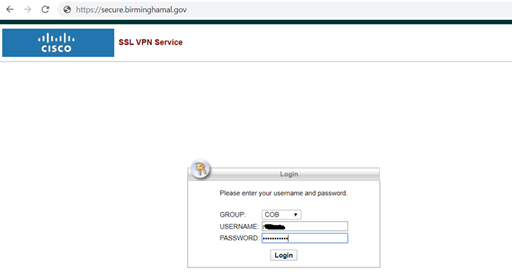
Point a browser to: https://secure.birminghamal.gov and enter your normal Windows credentials, no need for cob\ username or username@birminghamal.gov.
Note: You cannot install AnyConnect while on the City’s network.
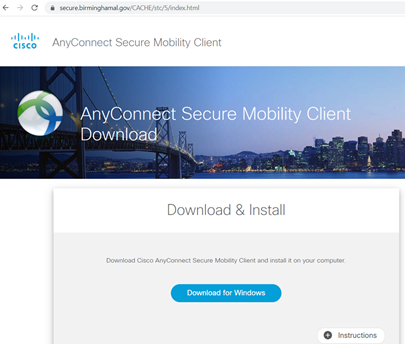
Take a minute to look over the instructions by clicking the + Instructions button.
Click the download & install button.
Locate where the AnyConnect installer downloaded to (COB default is your Windows Downloads folder) and run the installer accepting all prompts.
Running AnyConnect
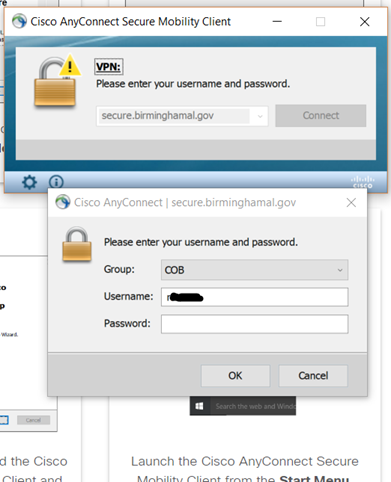
Locate Cisco AnyConnect in your start menu and run.
Your info should auto-populate, but otherwise connect to secure.birminghamal.gov and enter your normal username and password. As above, no need for cob\ or @birminghamal.gov.
Once connected, your computer will have access to the same city resources as if you were logged in at your desk.
Comments
0 comments
Article is closed for comments.