
The following document will walk you through accessing and installing the City of Birmingham’s Microsoft Office 365 suite of applications, plus basic usage and sharing of documents, both within the apps and to other O365 apps such as Microsoft Teams.
This document will show you how to check for your licensed apps and install them on up to five computers, PC or Mac. You can also respond to email, open, and edit most files right within your browser without even installing an app. With your files safely stored in OneDrive or part of a Team’s files, you’re no longer tied to your desktop, or dependent on administrators to setup network shares and control who has access to them. In addition, a computer crash no longer means you’re in danger of losing important files.
Your city-provided device may already have Office365 suite installed. On a Windows PC, you can check your applications for Outlook, Word, etc. That said, you may be licensed for an additional product not part of the normal Office installation, such as Visio.
Note: You do not have to VPN into the city’s network in order to access Office 365 remotely. All your apps, and any files stored in OneDrive, are available from anywhere with an internet connection!
To access Office 365, direct a browser to https://portal.office.com (if all you want to do is access your email online, you can go directly to https://outlook.office.com All features referenced in this document are still available when logging in to outlook).
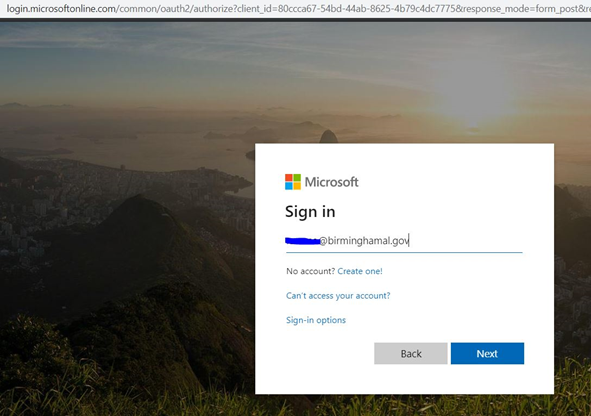
Your sign-in account is your username @birminghamal.gov This is the username you use to sign into your PC. Click “Next”
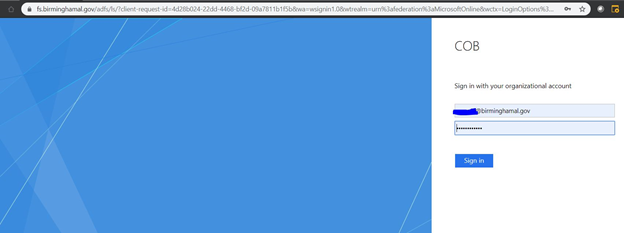
You’re redirected to log into our City of Birmingham organization. Your password is the same one you use to log into your PC.
Once you log in, you’re presented with a screen where you can access your online apps including email, your recent files, and install the most current version of Office 365, if licensed for install version.
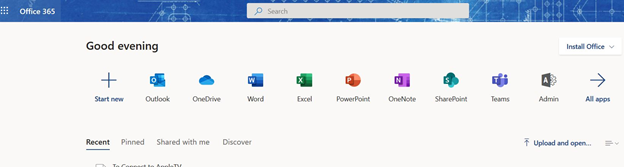
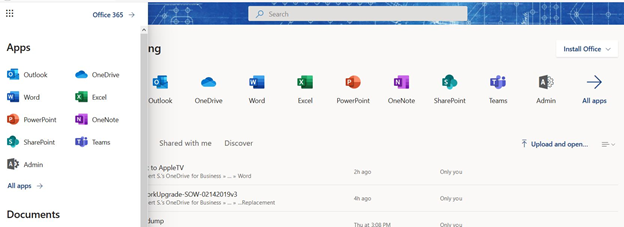
To the top left is the “waffle”. Clicking the waffle will give you access to any of your online apps, from any app. Apps open in a new window.
The online versions of the Office365 suite of products offers almost same functionality as their desktop counterparts and may only differ slightly, if any. Any Office document stored in the user’s OneDrive folder can be opened by the user, edited, saved, and shared with others for live, real-time collaboration from anywhere. If there’s a question about compatibility, any document can be opened in the user’s desktop version if they’re licensed for the install version and it’s installed.
Outlook
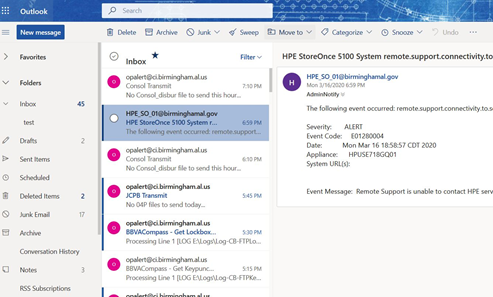
Word
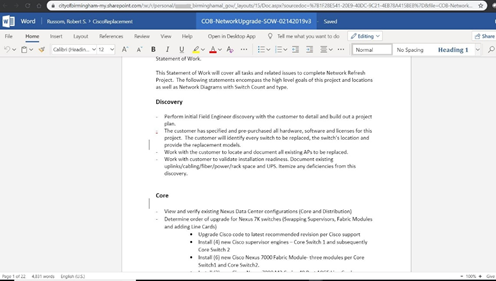
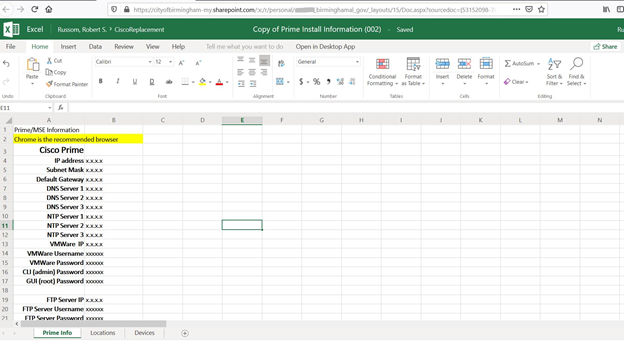
Excel
OneDrive – OneDrive online not only shows you what files you’ve stored and shared, but also what files you’ve shared or uploaded to other apps, such as Teams.
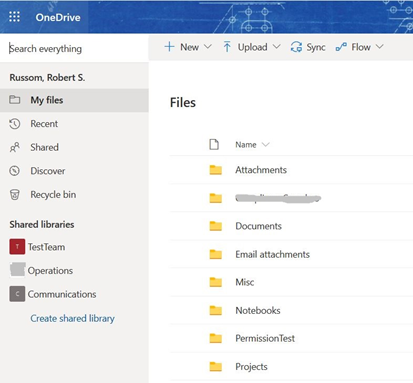
Sign into the OneDrive app on your desktop or laptop. Once Synced, file locations are the same no matter the device, anywhere you go.
To setup OneDrive, see the article OneDrive Setup
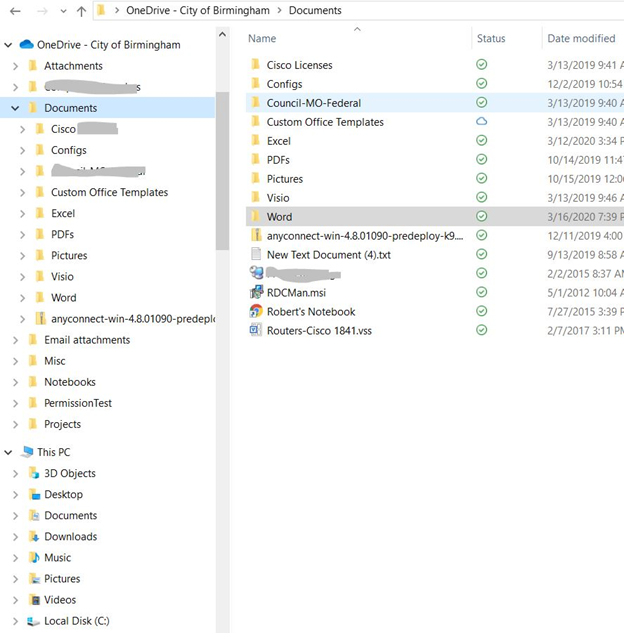
Documents and OneDrive files can be saved and shared with other users either to view or edit by clicking on the File menu. To share a document with one or more users, click “Share”
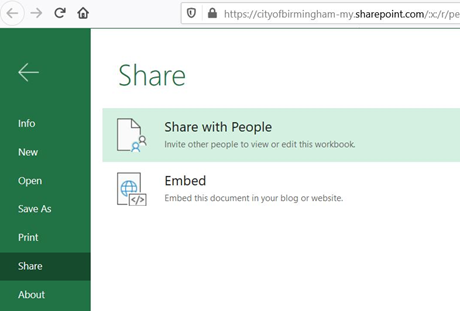
Click “Share with People”
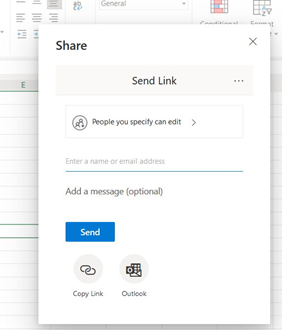
Add the names of the people within the COB organization you’d like to share your document with.
ALERT: Always know who you’re sharing your documents with. Never share a document with someone outside the birminghamal.gov organization without direct approval. Always control who has editing rights to your documents.
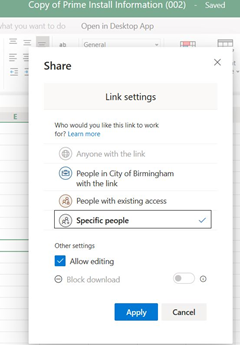
By default, users you add will have editing rights, but you can control that by selecting the “People you specify can edit >” button and unchecking “Allow editing”.
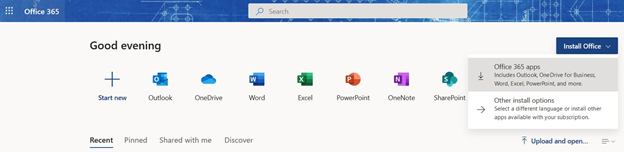
On the right hand of the portal is the “Install Office” button. Clicking it will begin installing the latest approved version of the Office 365 Suite onto your computer.
Note: Some users only use a shared office computer as part of their duties and may only have access the online Office365 suite and cannot install Office.
If you click on the small down arrow on the install button, you’ll be able to connect to your account page where you can see all the products you have available and install them. Click on “Other Install Options”
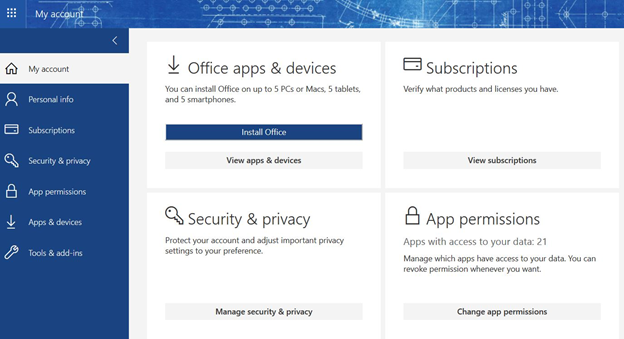
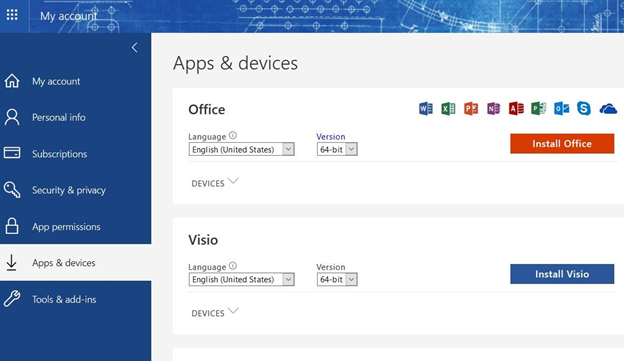
From this window you can see and install your available apps and see what devices you have Office installed on.
Once installed, you may be asked to verify your installation the first time you use an O365 app. Use your username@birminghamal.gov credentials as above.
You can find your apps in your Windows start menu by clicking on your Windows button and beginning to type the name of the app you want to open: Outlook, Teams, Word, etc… Mac apps will be found in your application folder or with Launchpad.
Comments
0 comments
Article is closed for comments.